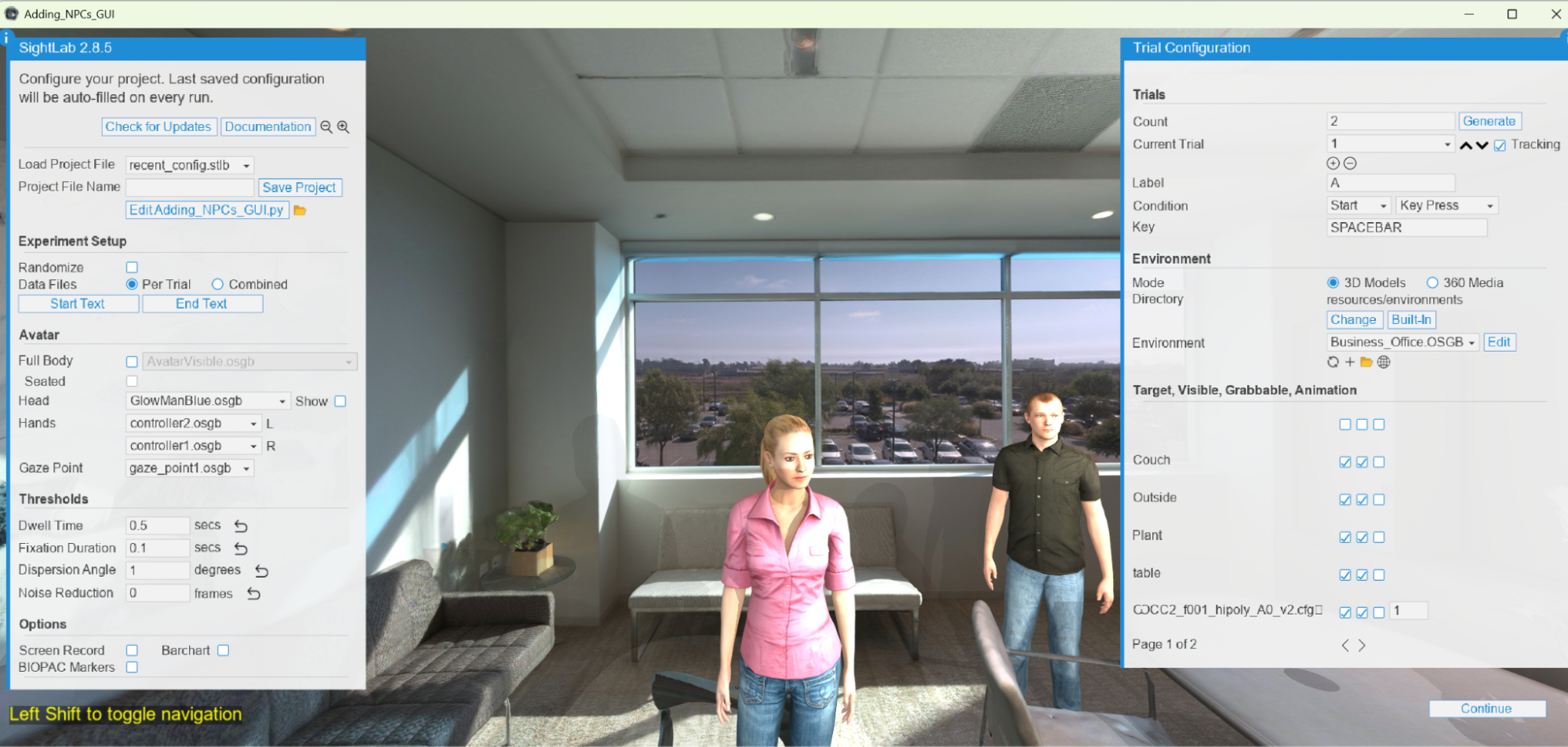
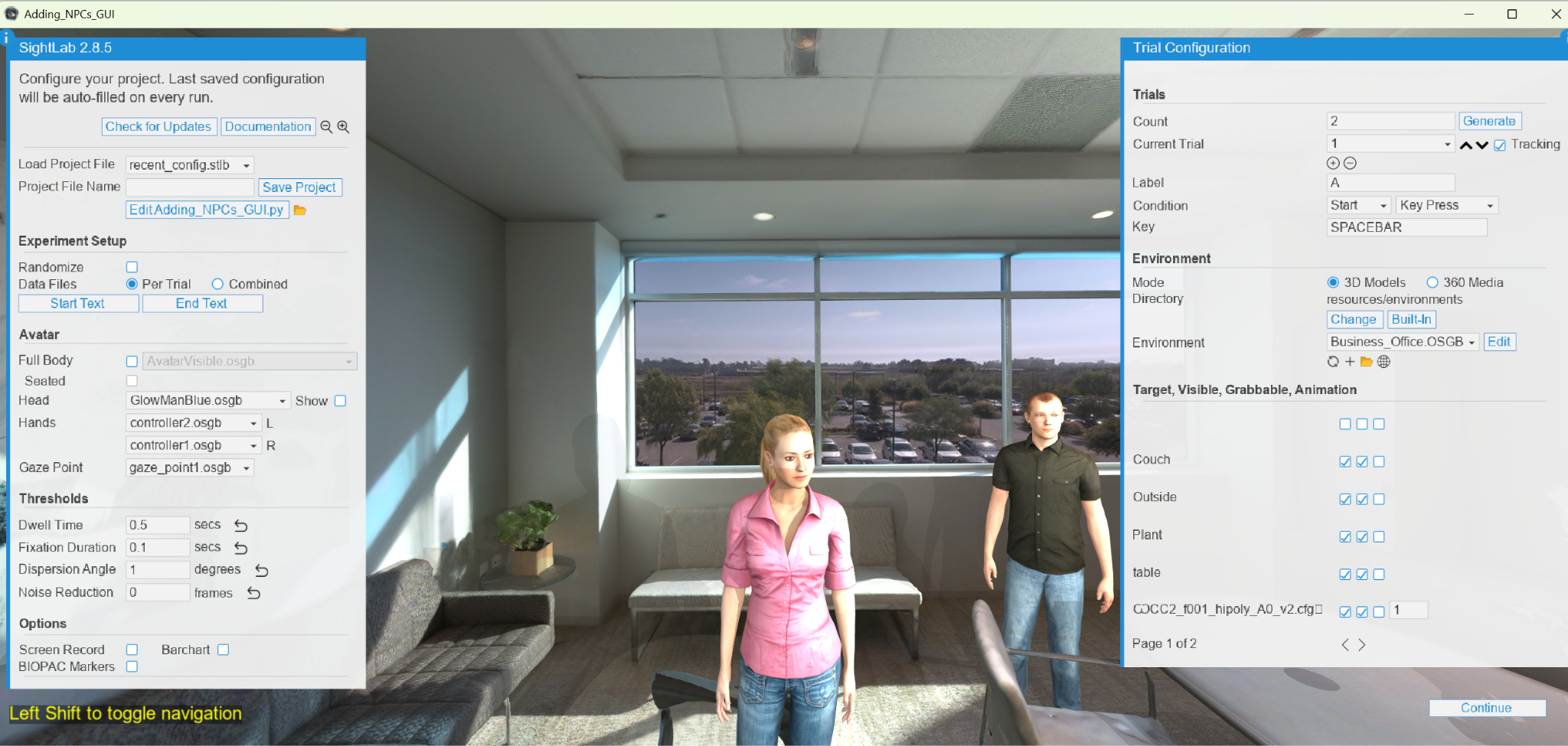
Avatars can be used as NPCs, animated agents, conversational AI role playing characters, or participant representations. With the updated workflow in SightLab, and now in E-Learning Lab as well, adding and working with avatars is much more streamlined and easier than ever.
SightLab includes a new and improved workflow for adding avatar agents directly into your scene. You can now drag and drop built-in avatars from the Avatars tab of the asset browser (with the new SightLab Dashboard), or use your own compatible avatar files. Supported formats include .osgb, .fbx, .glTF, and .cfg.

Once the avatar is in the scene, you can set animation states and facial morphs directly through the GUI or in code.
env = sightlab.getEnvironment()
avatarObject = env.getChild('MyAvatar.cfg')
# Add facial morph - first number is morph to use, second is strength
avatarObject.setMorph(0, 1)
If you want the avatar to appear in session replay and be included in gaze-based analysis, register it as a SightLab scene object with the avatar flag enabled (this will automatically be added if added via the GUI):
avatarObject = env.getChild('MyAvatar.cfg')
avatarObject.state(1)
sightlab.addSceneObject('avatarObject', avatarObject, gaze=True, avatar=True)
Using avatar=True ensures the avatar appears correctly in replay.
As of E-Learning Lab 1.4.2, you can now add NPC agents directly to your scene using the built-in avatar workflow.
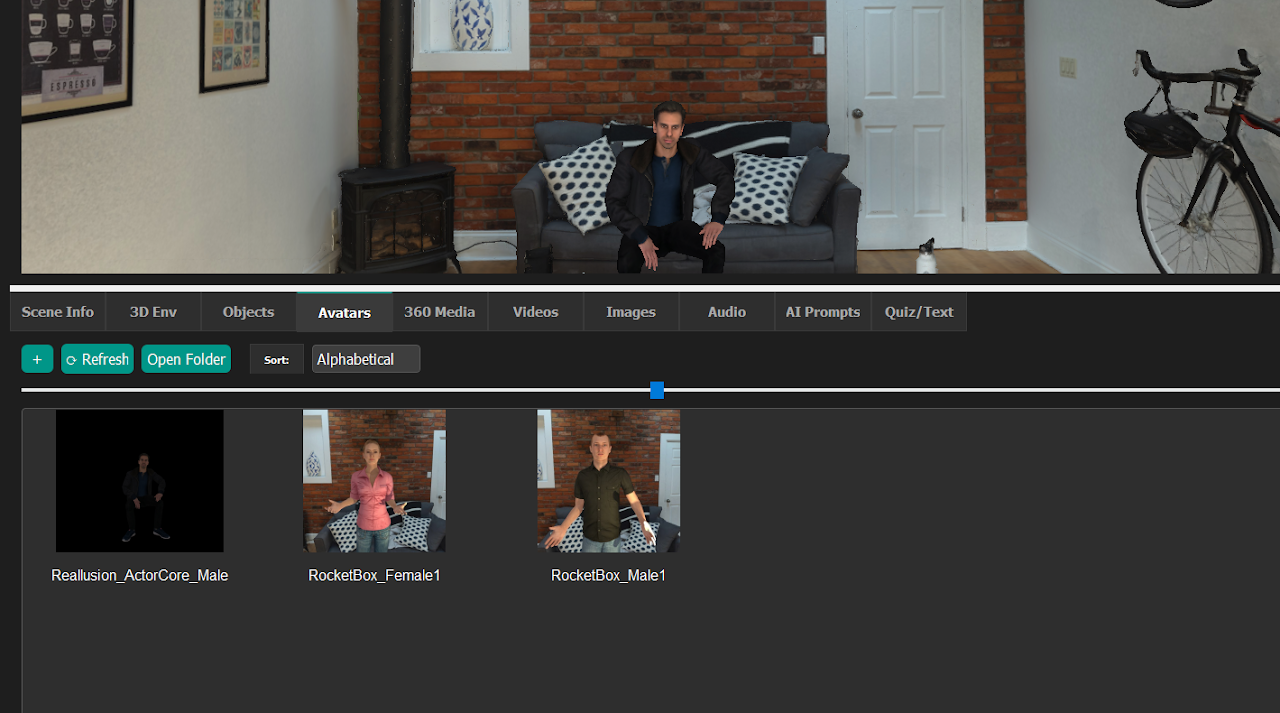
After placing the avatar, you can:
This makes it easy to quickly place animated NPCs into E-Learning Lab scenes without relying on a more manual setup workflow.

Supported Avatar Sources
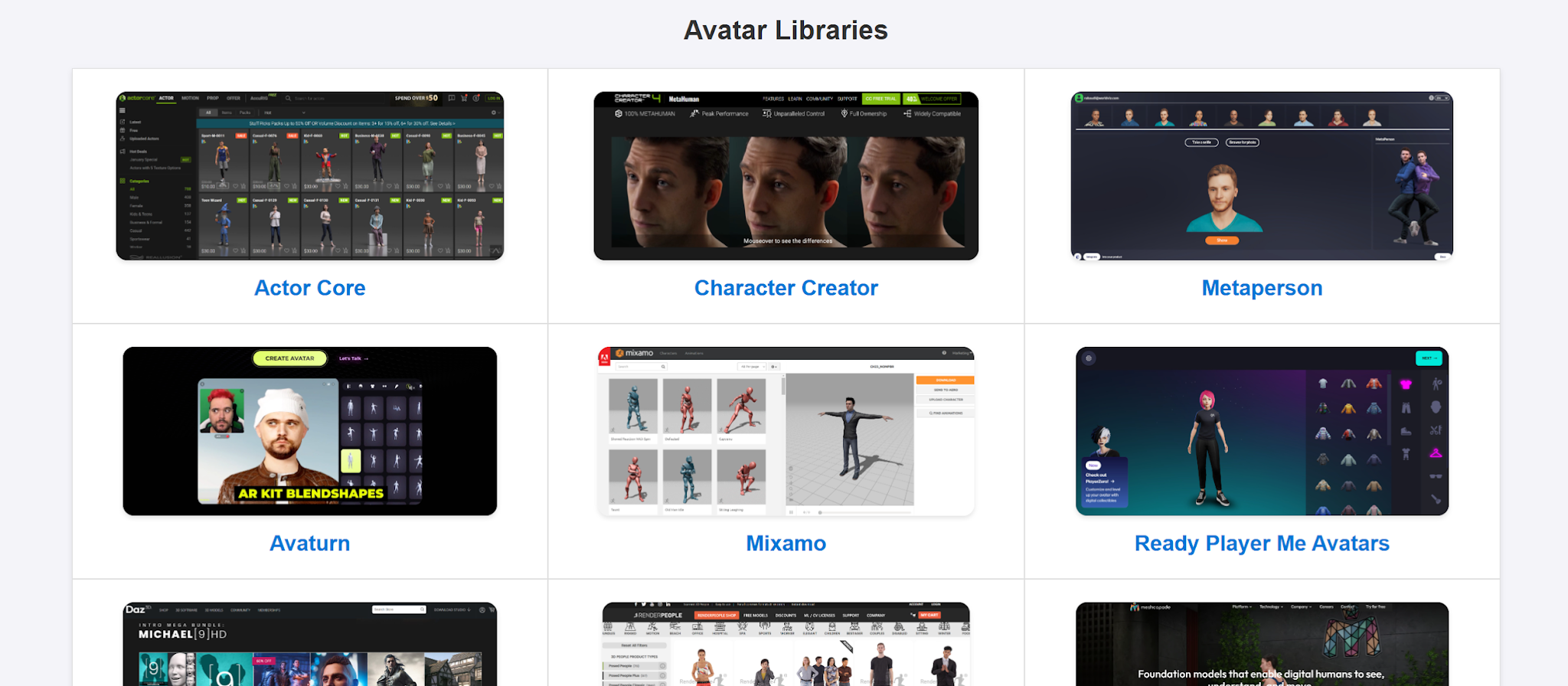
SightLab works with avatars from many common libraries:
📦 Browse more resources at the WorldViz Asset Browser