How to Display VR Sessions on a PRISM Immersive Theater or Projection VR
January 23, 2026
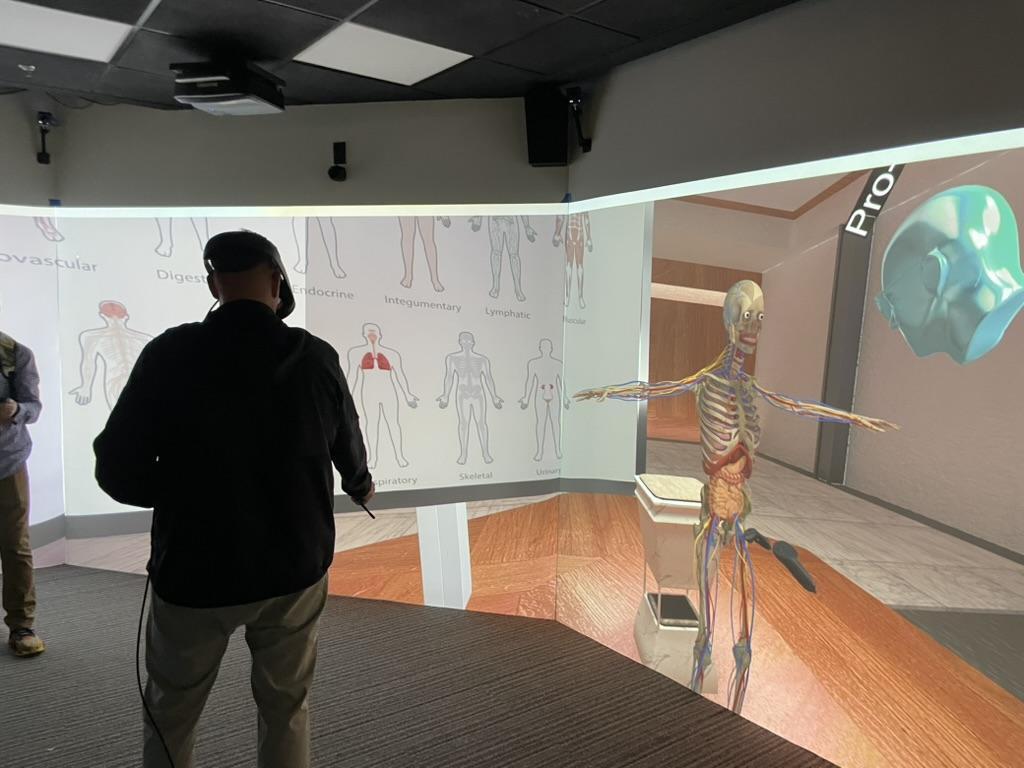
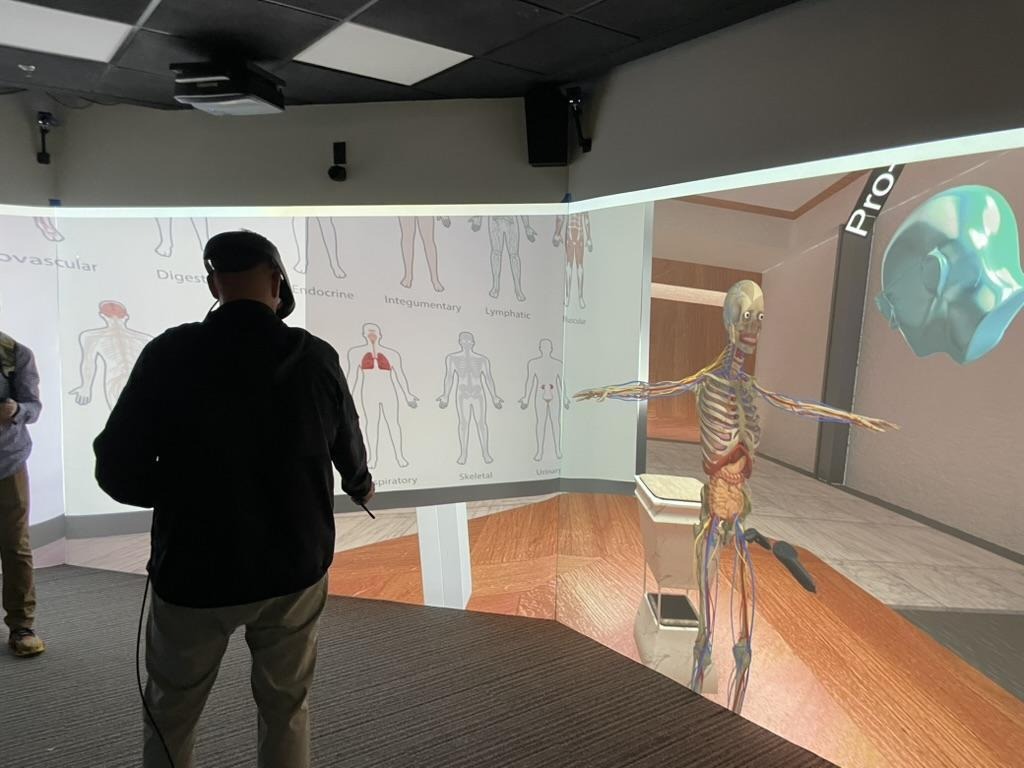
This guide explains how to display live VR sessions on a PRISM immersive theater or projection-based VR system. It covers both multi-user observer views and single-user projection setups, including keyboard navigation and advanced 3D projection configuration.
Overview: Display Options for Projection Systems
When running a VR session, there are two primary ways to display the experience on a PRISM or projection wall:
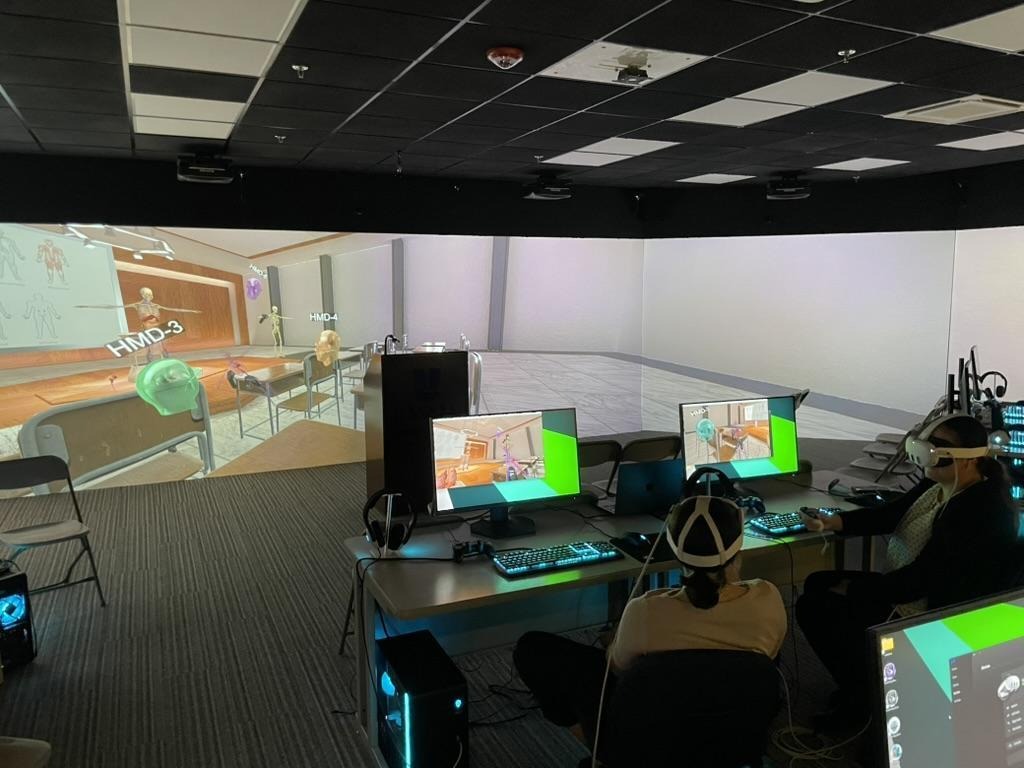
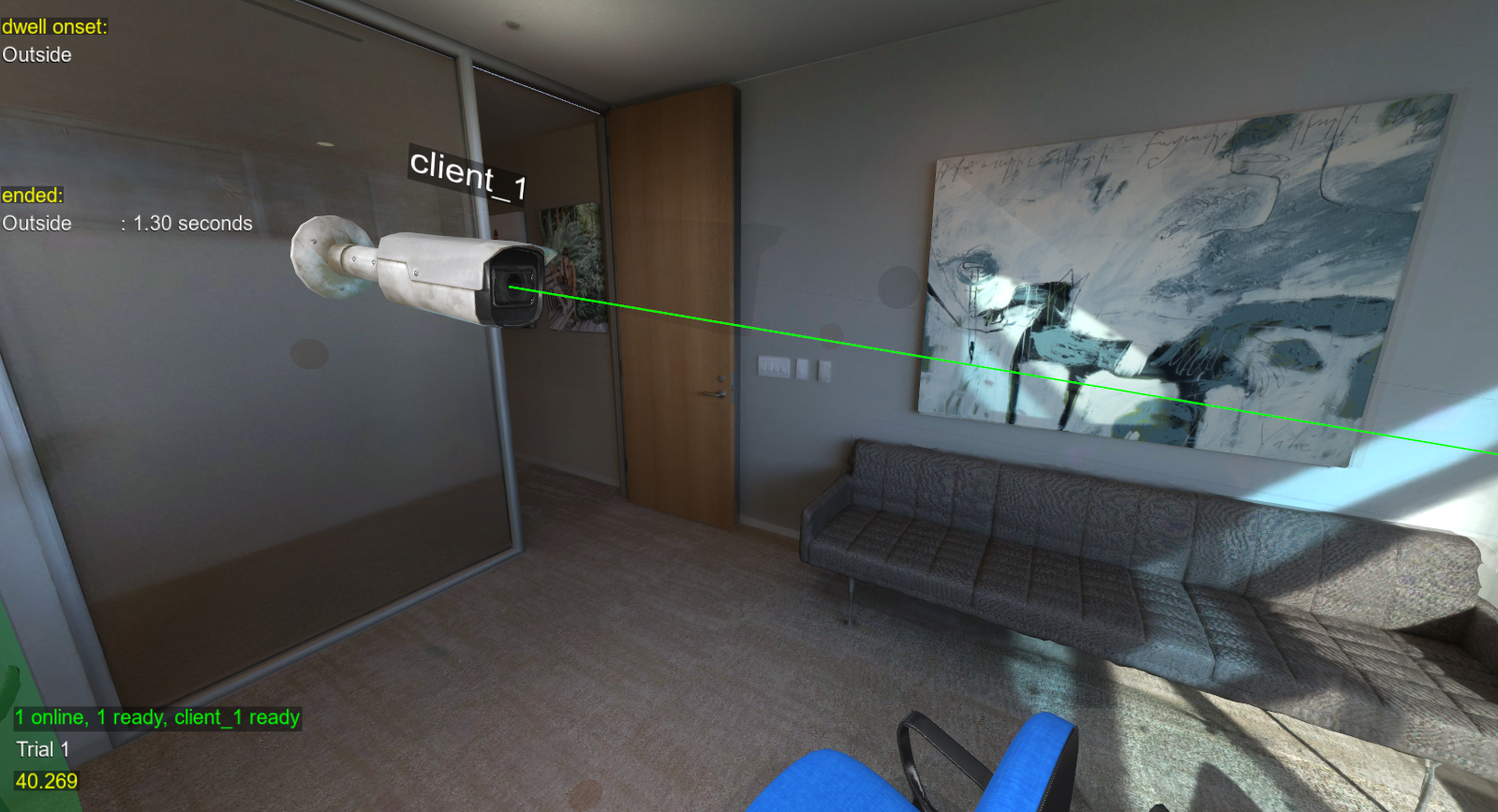
Observer (Bird’s-Eye) View A free-flying camera used to observe one or more users from outside their perspective.
First-Person View Displays exactly what a participant sees (single user or selected client).
Both options can be run on a standard desktop system connected to a projection or PRISM display.
Running a Bird’s-Eye / Observer View (Multi-User)
The observer view is ideal for:
Classroom demonstrations
Research observation
Public presentations
Multi-user experiment monitoring
Step-by-Step Setup
Start the Server
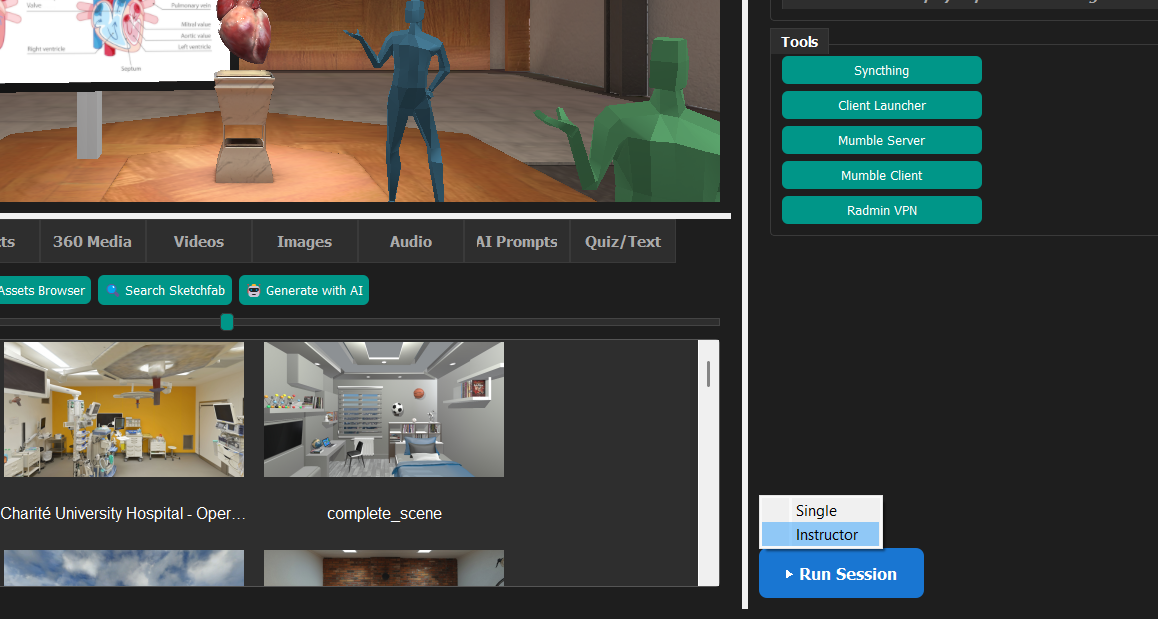
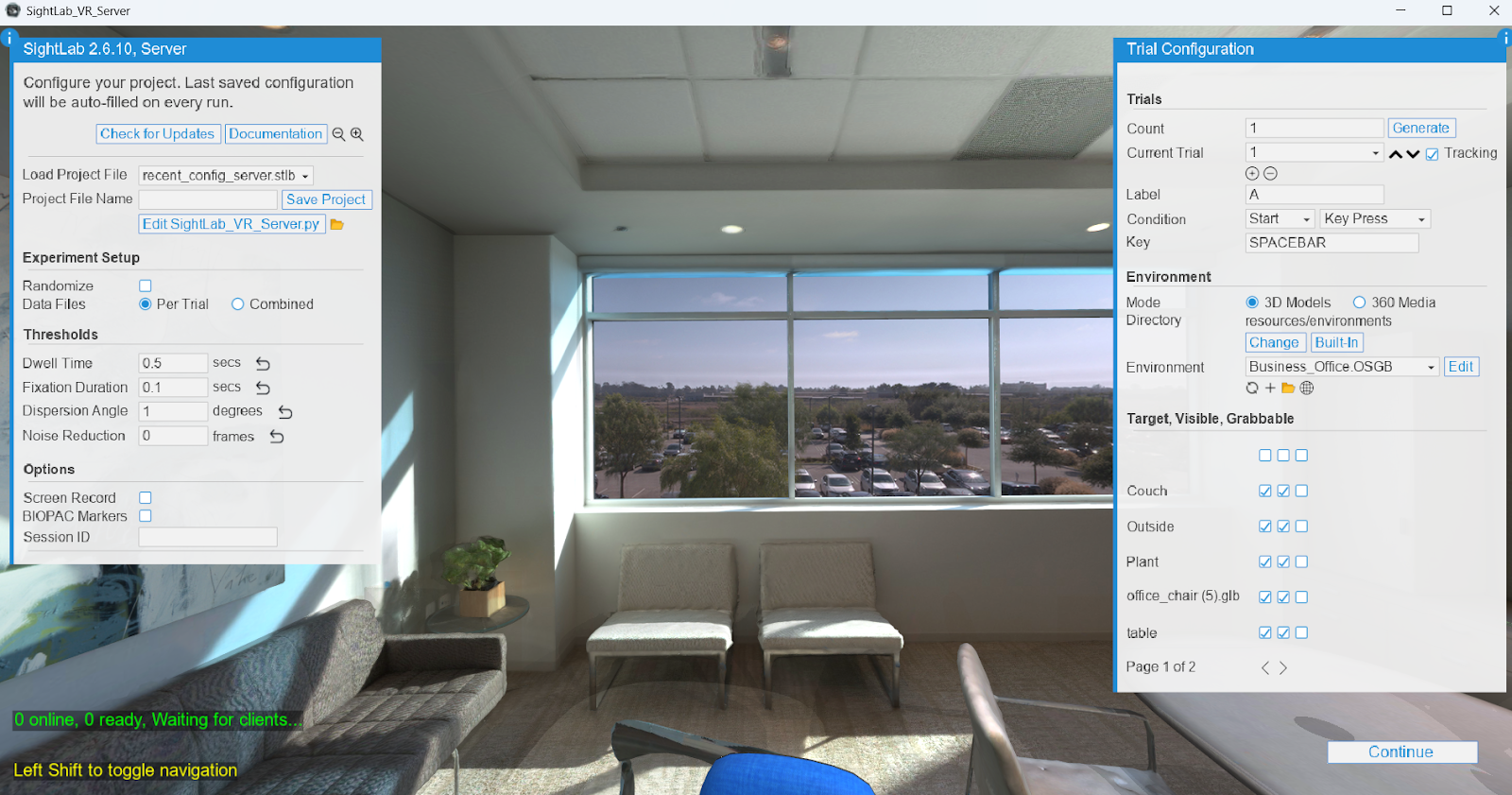
Launch the SightLab Server or E-Learning LabInstructor
Start Participant Clients
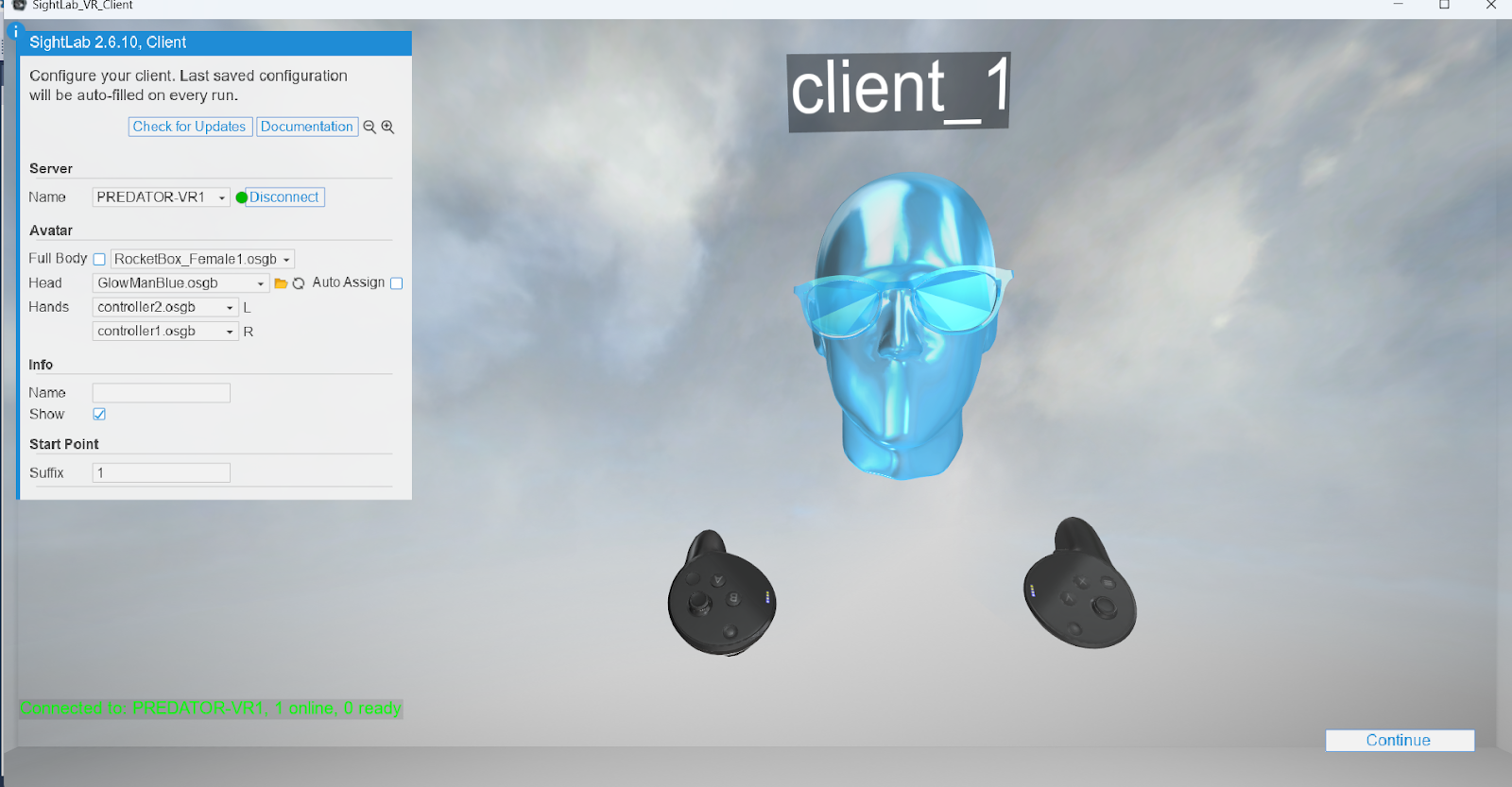
Run the appropriate number of client scripts for your VR users.
Launch an Additional Client for PRISM / Projection
On the computer driving the PRISM or projection system, run one additional client.
This client connects to the same server but is used only for display.
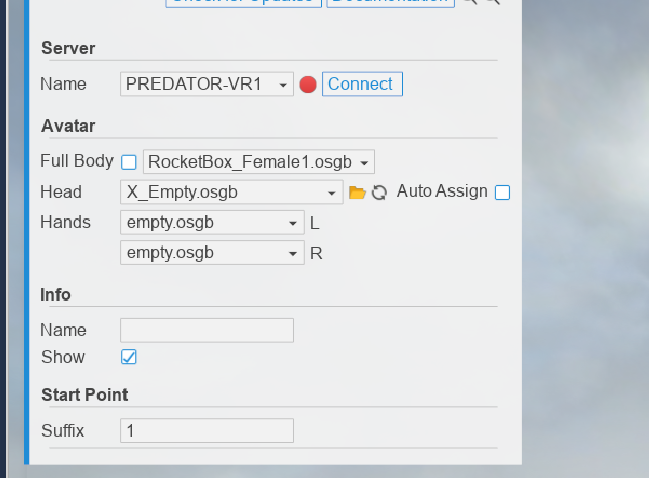
Select the Client Environment
Recommended options:
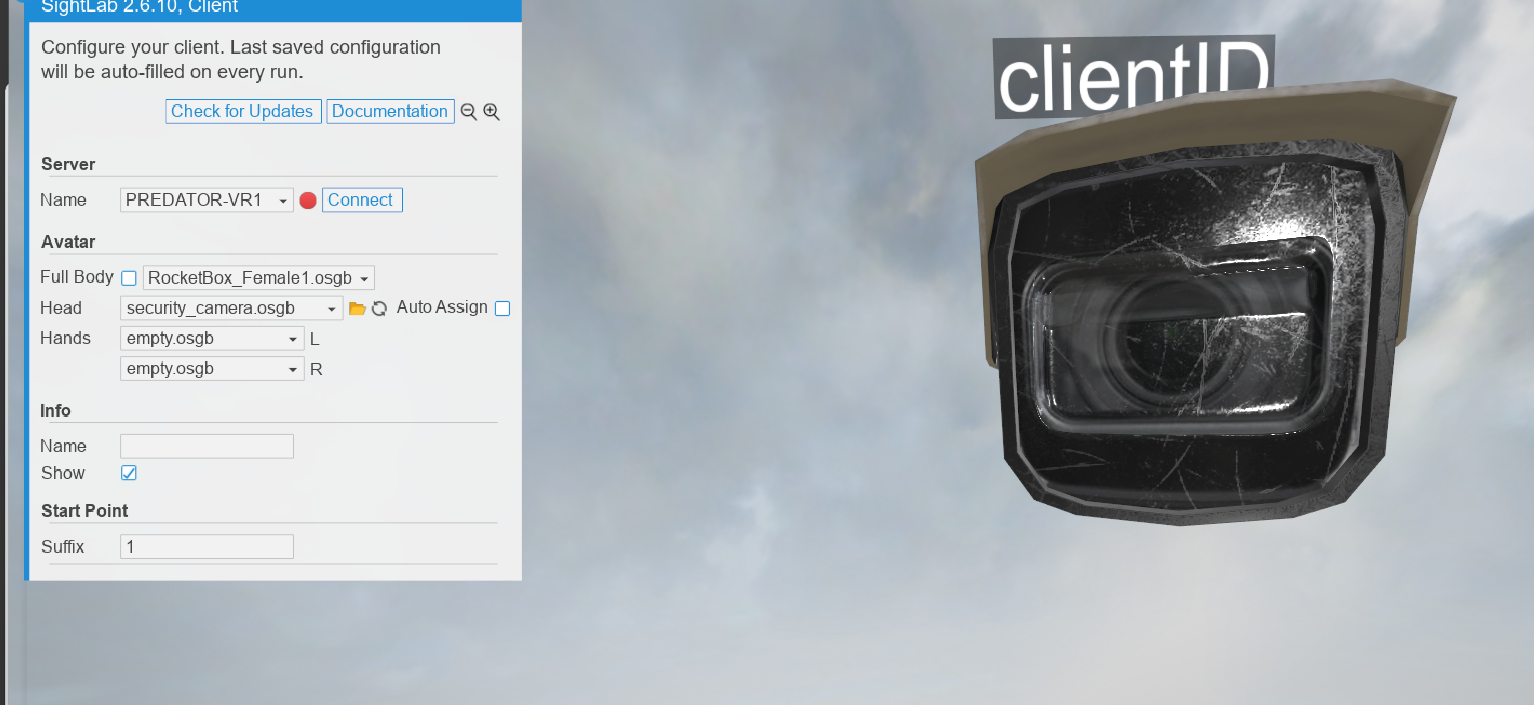
Empty – if you want no visible avatar or interaction
Security Camera – if you want a visible camera object inside the scene
Choose Hardware Type
Select Desktop as the hardware option.
Navigating the Observer View
Once the scene starts, you can control the observer camera using the keyboard:
Movement & Rotation
W / A / S / D – Move forward, left, backward, right